
Independent editorial guidance on compatibility, device settings, safety, and responsible use.
Checking a Jellyfin Downloader Code for TV
Independent editorial guidance on compatibility, device settings, safety, and responsible use.
The search phrase “Código Downloader do Jellyfin para TV Box e Fire TV Oficial” suggests that a numeric shortcut has an official relationship with Jellyfin. The number in a search result cannot establish that relationship. A shortcut may resolve to a destination controlled by someone other than the project, and the destination may change. This guide explains how to assess a code reference and find a documented installation route for the television hardware you have.
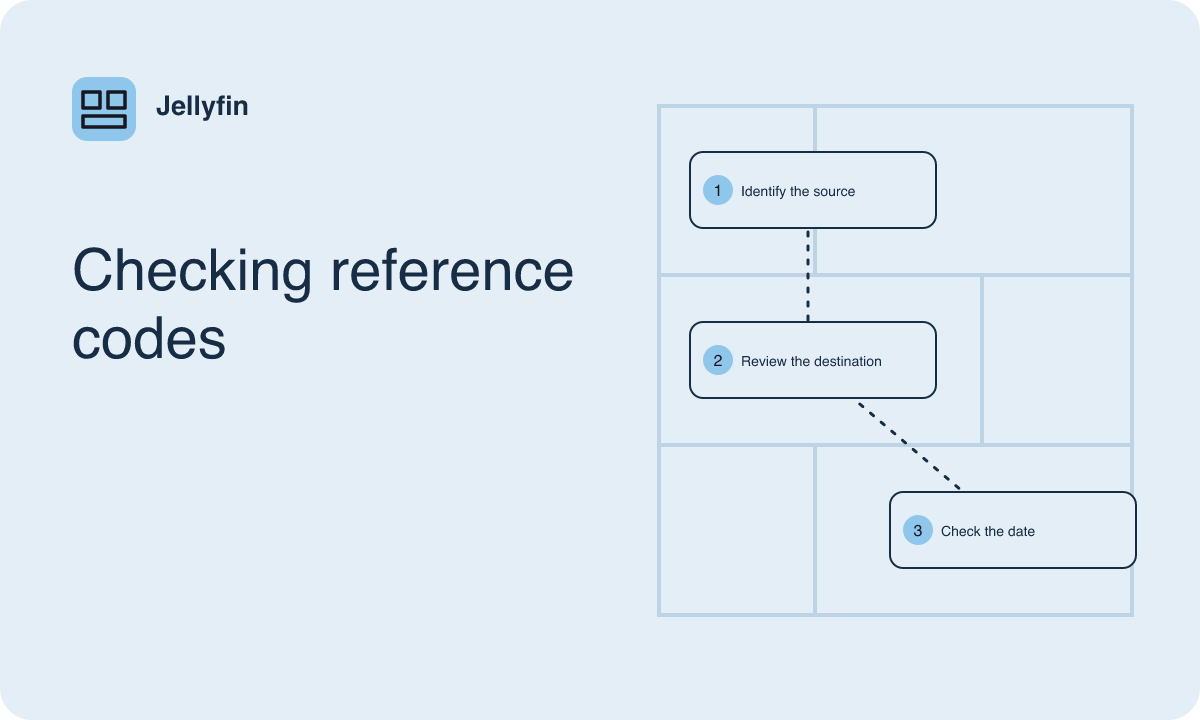
Understand what a numeric shortcut represents
A Downloader code usually serves as a compact way to enter a destination on a device where typing is inconvenient. It saves remote input. It does not by itself identify the publisher, prove who selected the destination, or establish what file is available there. A video showing one destination at the time it was recorded provides historical context, but it cannot show what someone else will receive later. A code printed alongside a project logo has the same limitation.
Treat the number and the software package as separate items when deciding what you trust. The shortcut can be convenient only after you have independently established the source you want to use. A label claiming that a code is verified needs a traceable reference from the project or the distribution channel. If the only evidence is a comment, image, or third-party article, the claimed relationship remains unverified. You can continue choosing a client without relying on that claim.
Identify the TV device before comparing sources
Use the device's own settings to record the model and operating system version. When a streaming box or stick is plugged into a television, use the box or stick's system information for the app compatibility check. If you open apps directly from the TV's home screen, use the television's system information. Two remotes on the same table can open different app stores. Knowing which one controls the app keeps you from checking requirements for the wrong system.
Look for a client documented for that platform. Start with the Jellyfin project's client directory and follow the distribution guidance associated with the relevant device family. For a store distribution, use the store on that device to see whether installation is actually offered. Read the listed hardware and software requirements for manual distribution if the project documents it. A TV device's ability to run a file installer says little about whether the media client will work with its remote or playback capabilities.
Check the relationship outside the shortcut service
First find the documented distribution route without entering the code. Identify the app name, the platform it serves, and how the project says to obtain it. If someone claims the project publishes a particular shortcut, look for that assertion in the same official distribution guidance. If you cannot confirm the claim, use the documented route. There is no need to resolve a shortcut simply to decide whether its claimed status is supported.
When comparing references, look at the full context. A legitimate release record may list multiple packages for different hardware, while a shortcut might drop the user directly into a download without explaining the target. Check whether you can still tell which release and variant you are selecting. The source should give you enough information to repeat the installation later and to understand how updates are provided. If the destination is unclear or a download begins before you can identify it, stop and go back to the distributor referenced by the project.
Choose a route you can repeat on the remote
If the documented store listing is available, install through it using the device's app management controls. If the project describes a manual package that suits the device, follow that route and the device maker's instructions for manual installation. This may require using a documented file transfer method instead of typing a long address on the remote. Check any permission prompts and use manual installation access only while you need it. Restore the prior setting when the installation is complete.
For example, a household might have two televisions from the same brand. One uses a separate Fire TV Stick, and the other uses the built-in app platform. A code advertised for one device offers very little information about the other. Check the Stick's model and store availability first, then check the second television separately. If the second TV has no documented client for its system, you can evaluate a supported external device or another existing screen based on its own requirements.
Evaluate a package you previously obtained
If a client is already installed, open the system's app details and write down its name and release. Look for information about where it was installed. A recognizable icon cannot tell you who built the package. Check the project's documented channels and see whether you can match the installed app to an identifiable distribution. If you cannot, ask the device administrator to review it before using it to access a private library.
If you downloaded a file but did not install it, start with its recorded source. A filename or a number in your notes cannot establish its origin. When you choose a replacement through a verified distribution channel, check the update guidance for existing installations. An install can fail if the package uses a different signing identity. Before removing an app, confirm which device you are changing and what local settings may be affected. That is particularly important on a TV used daily by someone else.
Test the client and save its source
After installation from a documented channel, verify that the app opens and that its menus respond to the remote. Put the TV or streaming device on the network approved by your server administrator. Start a short authorized video and try one everyday action, such as switching captions or returning to the library. This confirms that the device and setup can perform the tasks you need, and it gives you a starting point if playback behaves differently later.
Record the exact device, installed client, and distribution channel. Store a note such as “look up the TV client through the project's app directory” instead of a bare number. When a release changes or the household replaces a streaming box, a named distribution route gives you enough context to check compatibility again. It also helps someone else maintain the device without having to guess what a shortcut delivered the first time.