
Independent editorial guidance on compatibility, device settings, safety, and responsible use.
Jellyfin Media Player on Windows and Mac
Independent editorial guidance on compatibility, device settings, safety, and responsible use.
A computer can be the screen you watch on, the machine that hosts your library, or both. If you searched for “Baixar Jellyfin para PC Windows 10 e 11,” start by deciding which job the computer needs to do. The desktop client connects to a library on a Jellyfin server. This guide covers choosing between a browser and a documented desktop client, preparing Windows or macOS for installation, and checking playback with the hardware you use.
Identify the computer and its role
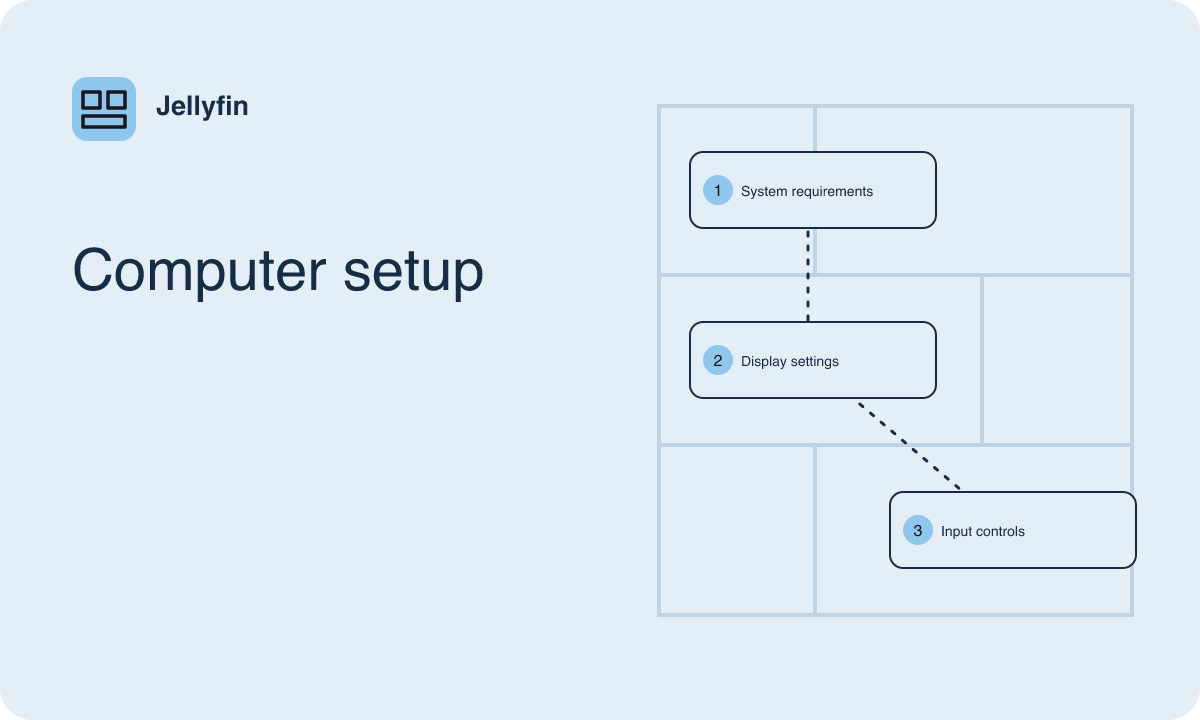
Look up the operating system version and the processor type in your computer's system information. On Windows, the system type can help you determine whether a listed package suits your machine. On a Mac, find out whether the model uses Apple silicon or an Intel processor. A package can be appropriate for one type and unavailable for another. Match the information you find against the requirements published for the desktop client you plan to use.
If a server already exists on your home network, you can use the computer as a viewer. Ask the administrator which network offers access, and confirm the library works there. If you intend to host your own library on the same computer, consult the separate server setup instructions for that operating system. Keeping track of which component you installed will help when troubleshooting. The server can continue running during a playback issue confined to the client, and troubleshooting that issue rarely requires moving the media folders.
Try the browser with a representative title
If you have a reachable server and a supported browser, open the server interface using the information the administrator supplies. See whether you can browse the library, start a video, and switch to full screen. Try the controls you normally use, such as seeking with the keyboard or selecting captions. For people who watch occasionally while working on a laptop, a browser may already fit their routine.
Test an ordinary video and a more demanding one. Browsers can differ in the media formats they can play and in how they handle audio, video, and subtitles. A server may adapt a file for the browser, which can change processing demands. Watch for problems that matter to you, such as fan noise on the server, audio sent to the wrong device, or slow seeking. Write down which sample and which settings produced the problem. That gives you something concrete to compare when you try a desktop client.
Find a documented desktop distribution
Start from the Jellyfin project's client references and locate the desktop application that matches your needs. A project name or old screenshot may appear in discussions for a client that has moved or changed its distribution. Read the requirements and release notes for the package you would actually install. Check the operating system, processor, and any additional requirements listed there. Pay special attention to these details on older computers that can no longer receive major system updates.
Use the distribution source identified for that application. When there are several assets with similar names, review their descriptions to tell a standard installer from a package intended for another use. On a managed computer, check whether your organization requires software to be installed through a catalog or by its administrator. If the operating system raises a warning or refuses an installation, look for the publisher and package guidance documented for that release. Keep your operating system's protections in place while you clarify the warning.
Set up playback for your desk or living room
After installation, open the client and connect to your server using the information provided by its administrator. Test it on the same network and with the same titles you used in the browser. Compare how quickly the controls respond when you seek or move between chapters. If playback breaks only in the client, note the client version and any changes you made to its playback settings. Then try one setting at a time so you can identify which adjustment affects the result.
Consider where your screen and sound actually go. A laptop connected to an external monitor may still send audio to its built-in speakers, while a computer connected to a receiver can have several audio outputs with similar names. Use system settings to confirm the selected output and try a basic stereo track first. If you watch from a couch with a wireless keyboard, check that the player can start, pause, and exit full screen comfortably. Also see what happens when the computer wakes or when an external display reconnects.
Investigate stuttering and missing sound systematically
Compare two attempts with the same video, track, and captions. When sound disappears after changing outputs, switch back to the earlier output and repeat the same scene. If it works again, note what the system and player each showed as their selected outputs. For captions that make playback stutter, repeat the scene with captions off and with a different supported track if one is available. Ask the server administrator whether playback information indicates a different playback method.
For a laptop, check whether the behavior depends on power mode, the use of an external display, or wireless signal at the viewing location. Test with the machine in its normal arrangement before changing system settings. If video freezes in both the browser and the desktop client whenever the server is busy, ask the administrator what else runs on the server at that time. Your desktop comparison is most informative when it changes only the client.
Keep the installation easy to update
Record the desktop application's exact name, release, and installation source. If the package came through a managed installer or a documented release channel, use that same route to check for updates. Read the notes for changes that affect your operating system or playback hardware. The library server can have a separate update schedule, so document any server changes independently.
For a shared computer, think about what shows up in recently used apps, on an external monitor, or in playback history. Ask the household administrator about a library view appropriate to the people who use that machine. Finally, keep one short video available as a repeatable check. When you change your display, speakers, or client, use it to confirm that the computer opens the library, sends audio where you expect, and responds to the controls you rely on.