
Independent editorial guidance on compatibility, device settings, safety, and responsible use.
Reviewing Jellyfin Security and Privacy
Independent editorial guidance on compatibility, device settings, safety, and responsible use.
“O Jellyfin APK é Seguro? Relatório de Antivírus e Privacidade” is a question about a specific package and the way it will be used. This page offers a review procedure for the Android client, server, and home network. It contains no antivirus scan results. Open-source licensing makes source review possible, while questions about a particular download still require evidence about its origin, its distribution channel, and the device on which it will run.
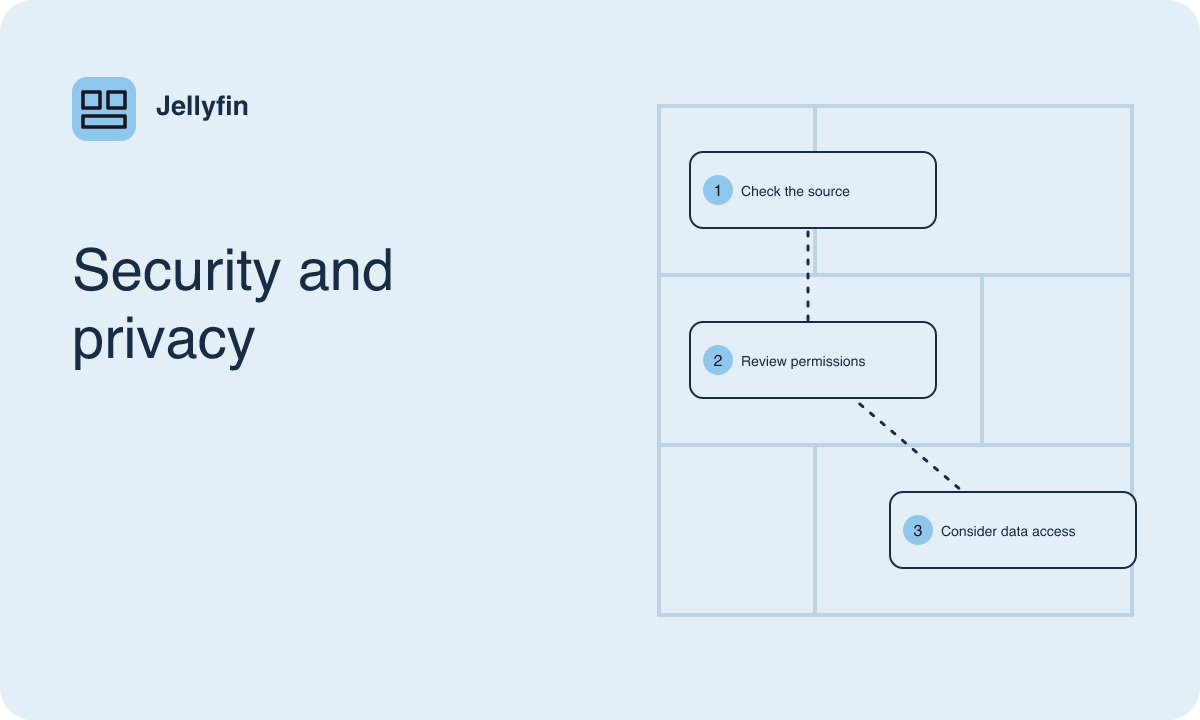
Define the scope before reviewing anything
Write down the component you intend to evaluate and where it runs. An Android client, a television client, and the server are separate components with different security and privacy implications. A client can request access to features on a phone. The server can read configured media folders and may be reachable by other devices. If you plan to install both, make two entries in your notes so that a finding about one does not get attributed to the other.
Add the exact software name and the release shown by the documented source or the installed application. Record which device uses it and whether the device belongs to you, a household, or an organization. Device ownership matters because an organization may manage updates, permissions, or networking. Define what the review should establish. For example, you may only need to know how a phone installation is updated and how to limit the information visible when the screen is locked.
Trace the origin of the Android package
Start with the Jellyfin project's client directory or release documentation, then follow the distribution guidance for the client you want. Compare the platform and release information with the app offered for your device. Similar filenames, logos, and screenshots give limited evidence about where a package came from. The project's documented relationship to the distribution channel provides a better basis for choosing an install.
Where the project provides signing or verification guidance, check that it applies to the exact artifact and channel you are considering. Keep a record of what you actually verified. For an installation managed by a store, note which store and listing supplied it. For a manual package, record how you traced it back to the documented source. An installer warning or unexpected difference in signing should prompt a second review of both the artifact and its source. Retain the operating system's usual protections during the review.
Interpret scan results in context
If you have access to an approved scanning tool, check its documentation and the privacy implications of submitting an artifact. Some services may send samples or metadata off the device. For a managed phone, ask the administrator which tool and process are allowed. Match any result you review to the particular file that was checked and the date of the scan. A screenshot of someone else's scan leaves open whether it covered the same package.
A scan can help identify patterns recognized by a particular tool at the time it ran. It provides limited evidence about changes in a later release, the data the app exchanges during use, or the security of your server. Treat a warning as a reason to pause and verify the package with the documented distributor. If you need to ask a question, describe the source and alert without sharing a private device report or other information that the recipient does not need.
Review app permissions and what the screen reveals
After installing through a source you verified, open the operating system's app information and review the current permissions. Compare prompts with the features you actually use. A local network permission may be relevant to finding a receiver. Notification settings may affect what appears on a locked screen or a watch. Where the operating system lets you restrict an optional permission, test ordinary playback after changing it and see whether the feature you care about still works.
On a shared television or tablet, open the library with the view intended for its usual users. Check which titles, artwork, and recent activity appear. Personal recordings can reveal names or dates in a filename before a video ever plays. Review any sharing or casting settings that could send a session to a screen in another room. Use a test recording with a generic title when evaluating what family members or guests can see.
Check server access and external services
List the devices and people that should be able to reach the server. If everyone watches at home, review the existing network settings with the administrator and confirm that the server's actual reach matches that plan. Where access extends beyond the home, ask the administrator how they review the project's deployment guidance, apply updates, and monitor issues relevant to that setup. Consider the server host and its operating system as part of that review.
Also identify optional services used by the library. A metadata provider can receive lookup information when the server tries to match a title or retrieve artwork. A client or server built by another project may have its own documentation and data handling. Review the settings of the components actually installed. For example, you can test scanning a sample folder with generic names and note which providers the configuration enables before you add a collection of home videos. Keep server backups in a place accessible only to the people responsible for restoring them.
Record evidence and unresolved questions
Write a short record of the package source, what you checked, the device permissions you reviewed, and the server access your household intends. Give findings a date and tie them to a component. For example, “Android app notifications were disabled in system settings on the shared tablet” is a specific observation. Broad claims about every device or every Jellyfin release would require different evidence. Leave room for questions you cannot answer from your own setup, such as how an unfamiliar distributor builds and signs an app.
Repeat the relevant checks after a change to the distribution channel, a major system update, or a change in who can reach the server. A quick comparison of permissions and access settings can help the administrator find changes worth a closer look. Keep detailed records private if they reveal network information or family viewing activity. A usable review leaves you with a clear account of where the software came from, what the installation can access, and who is responsible for maintaining it.