
Independent editorial guidance on compatibility, device settings, safety, and responsible use.
Jellyfin for Android TV, TV Boxes, and Fire TV
Independent editorial guidance on compatibility, device settings, safety, and responsible use.
A television client should be comfortable to use from the couch and should play the kinds of files you actually watch. The search phrase “Jellyfin para Smart TV e TV Box” covers several device families with different app stores, system requirements, and remote controls. Start by identifying the device that will run the client, then check your playback setup from the server all the way to the screen and speakers.
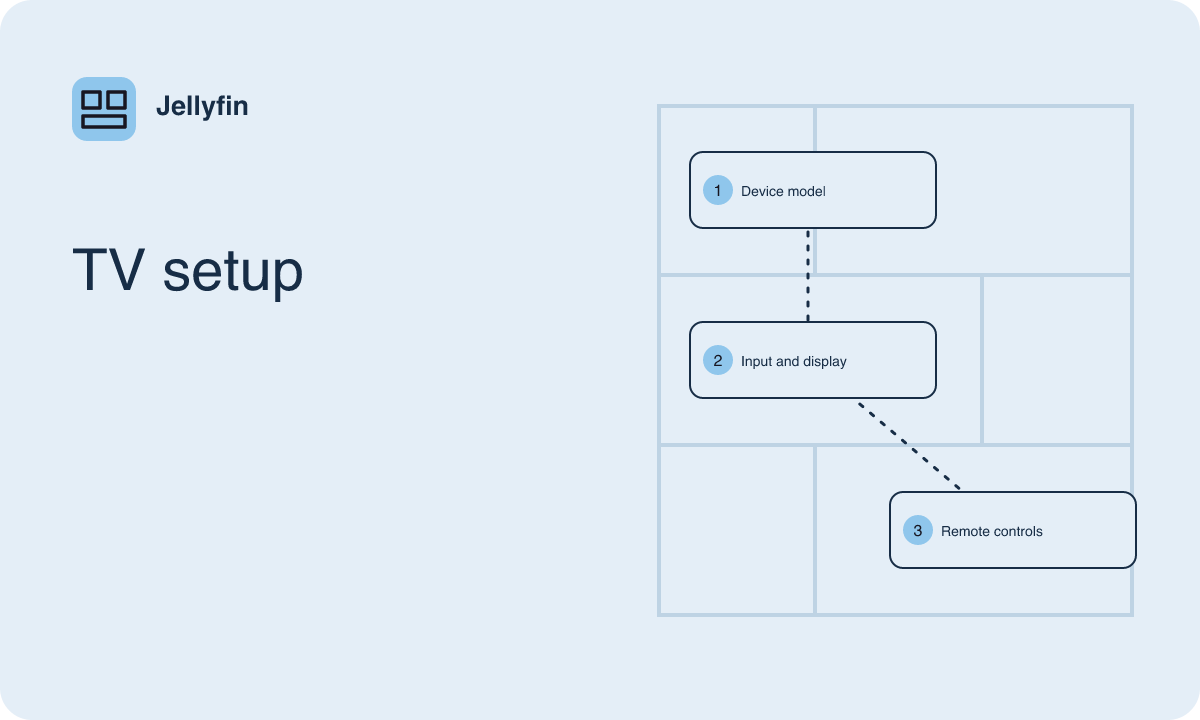
Identify which device controls the television
Open system information using the remote you normally use to launch apps. Write down the exact model and operating system, including the software version. A TV connected to a streaming stick has at least two systems involved. If you open apps from the HDMI input for that stick, the stick's software determines what you can install. The television itself still affects picture, sound, and HDMI behavior. If you use its built-in app menu instead, use the television's software details when checking for a client.
Some boxes run software designed for television controls, while others present something closer to a phone interface. The home screen may give you a clue, but the device documentation and system information provide a better basis for comparison. Check whether the Jellyfin project lists a client for the platform and whether its requirements match the device. For Fire TV specifically, confirm the model and Fire OS version and check the supported distribution route for that device. Store availability and documented compatibility can vary.
Choose an installation route suited to the remote
Use the project's app listings to find the documented source for your platform. If that source points to a store, search from the television device and compare the listing against the project reference. On a family device, check whether an adult or managed profile has to perform installation. Before you start playback, spend a minute moving the focus around the app. Make sure you can see which item is selected, reach the media details screen, and back out without getting stuck.
If the project's documentation identifies a manual package as suitable for your model and software, review its instructions and any device requirements before using it. A package you previously used on an Android phone might install on some television hardware yet leave you with menus designed for touch. The better test for a television client is whether it behaves predictably with the directional pad and select button. If you plan to enter text often, try the keyboard that came with the device and see whether voice input or a paired device is supported through the TV's own controls.
Give the television a dependable network connection
For initial setup, place the television client on the network that can reach the server. If the device is on a separate guest network, it may have internet access but lack access to the computer hosting your media. Confirm the TV's current network in its settings before changing anything on the server. If you have both a built-in TV client and an HDMI device, check the network on the system that actually runs the Jellyfin app. Either can be connected even when the other is offline.
Start with discovery if the client supports it, or ask the server administrator for the connection information appropriate to that network. For occasional stuttering, note whether the device reports weak Wi-Fi near its actual position, such as behind the television or inside a cabinet. If the hardware supports wired networking, a short comparison over a direct wired connection can help you isolate a local wireless issue. Keep the same title and playback choices for both attempts so the comparison has meaning.
Match playback to the picture and sound setup
Test a file with basic stereo sound and an ordinary video format before trying the most demanding item in your library. Then try one with the resolution, picture settings, and sound tracks you usually prefer. Keep track of whether the sound is coming through the TV, a soundbar, or a receiver. A source device may send audio to the television and rely on the television to pass it along to the sound system. Each part of that chain can affect the result.
If a favorite title has multiple audio tracks, try switching tracks while keeping video quality and subtitles the same. If sound returns, record which track worked and where the audio was sent. For picture problems, check the streaming device's output settings and the TV's input settings before assuming the media file is damaged. Ask the server administrator to compare playback information for the working and failing cases. That comparison can show whether the file was played directly or whether the server had to adapt it.
Check comfort and accessibility from the couch
Set up the screen for the person who will spend the most time using it. Sit at normal viewing distance and try reading a title description, opening playback controls, and turning on subtitles. Check whether the client follows any caption preferences configured on the device or supplies its own controls. Try a dark scene and a bright scene to see whether captions remain easy to read. If someone relies on a particular subtitle or audio track, test that track with a real title before considering the setup complete.
A useful family test is to hand over the remote and ask someone to find a recently watched item, resume it, and return to the library. Watch where they lose focus or use the wrong back button. Depending on the platform, pinned apps, favorites, or a home screen shortcut can reduce the number of actions needed to get started. With a television used by several people, check their library views separately so that each person sees appropriate folders.
Record what works for this room
Keep a short note of the hardware model, operating system, installed client, network connection, and audio output. That note is especially helpful if your household has similar remotes or several TVs with different capabilities. If a later update changes behavior, repeat a short clip and a more demanding sample using the same settings. Pay attention to whether the library opens, whether seeking works, and whether playback resumes cleanly after pausing. Those observations help distinguish a change in the TV client from one involving the server, network, television, or speakers.
When adding a second television, check its setup on its own terms. A bedroom TV might use built-in speakers and a different app platform from the living room, even if both screens play the same media. Reuse your test titles and your notes about the library. Then choose the client and settings that make sense for that specific screen.